

- How to Translate an Image Online with AI
- What Is an Image Translator?
- How to Translate an Image Online with AI
- Common Situations for Image Translation
- Image Translator Tools for Different Needs
- How to Choose the Right Image Translator
- Tips for More Accurate Image Translation
- Frequently Asked Questions
- Conclusion
Image-Based Translation Tools: How to Translate Images
How to Translate an Image Online with AI
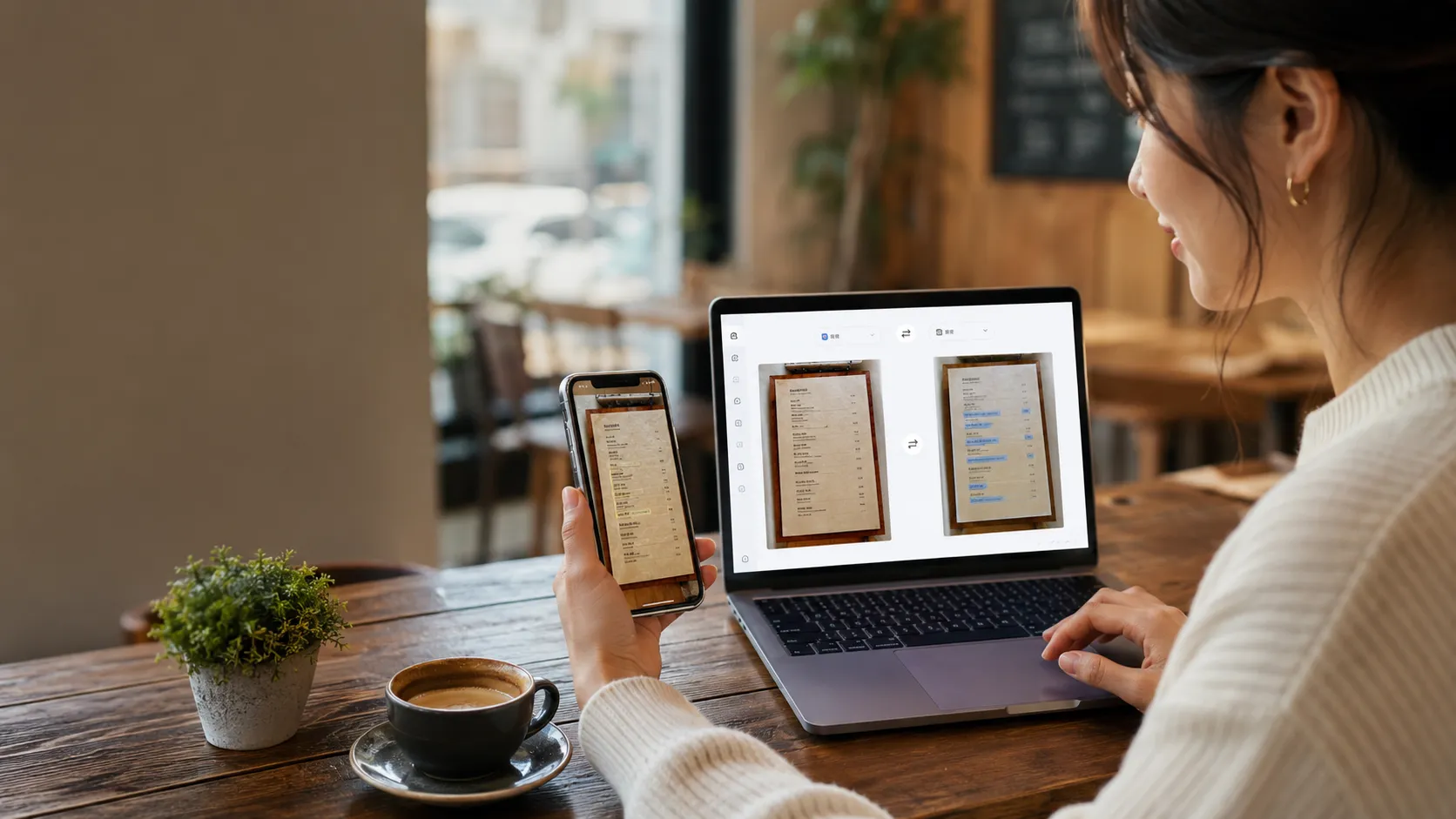
Ever tried reading a foreign menu, a snapped photo of a street sign, or a vital screenshot, only to hit a wall because you couldn't copy the text? Manually typing non-selectable characters into a translator is painstaking and time-consuming.
An AI image translator can solve this problem in seconds. It uses OCR to recognize text inside an image, translates the content into another language, and may preserve the original layout. This guide breaks down how to translate text from images step-by-step, compares the top tools on the market, and shares actionable tips to get flawless OCR results every time.
What Is an Image Translator?
An image translator detects and translates text inside photos, screenshots, scanned documents, menus, signs, and other visual content.
Most image translation tools use a two-stage process:
- OCR recognizes the text inside the image.
- An AI translation engine converts the text into the target language.
Some tools only return translated text. Others create a translated version of the original image while preserving fonts, spacing, colors, and layout.
How to Translate an Image Online with AI
1. Upload or Drag and Drop Your Image
Open an online image translator and upload your file. Depending on the platform, you may select a file from your computer or drag it into the upload area.
For the best results, use an image that is:
- Clear and high-resolution
- Well lit
- Not heavily compressed
- Free from strong glare or shadows
- Straight rather than severely tilted
2. Select the Target Language
Choose the language you want to translate the image into. Many tools can automatically detect the source language, so you only need to select the target language.
For example, you might translate:
- Japanese into English
- Spanish into French
- Chinese into English
- Korean into German
- Arabic into Spanish
3. Let OCR and AI Translate the Text
OCR analyzes the visual content and identifies individual words, lines, and text blocks. The AI translation engine then considers the surrounding sentence and translates the content.
Context dictates precision—a single word often carries vastly different meanings depending on whether it appears on a dinner menu, a warning label, or a software interface.
4. Review and Download the Result
After processing, review the translated result before using it. Some tools let you compare the original and translated images side by side. Others provide a translated-only view or text transcript.
You may be able to:
- Compare the source and translated image
- Copy the recognized text
- Read a transcript
- Download the translated image
- Check numbers, names, and technical terms
Common Situations for Image Translation
Translating Menus, Signs, and Product Labels
Travelers often use image translation to understand restaurant menus, street signs, transportation instructions, and product packaging.
A camera-based translator is useful when you need an instant answer. You can photograph a menu and translate the dish names without typing them manually.
Always check allergens, measurements, dates, and warnings carefully.
Translating Screenshots and Social Media Images
Screenshots often contain text that cannot be selected, including:
- Chat messages
- App interfaces
- Social media posts
- Online advertisements
- Website screenshots
- Customer support conversations
An online image translator lets you upload the screenshot directly. If the tool preserves the original layout, it is easier to understand which translated phrase belongs to each button, label, or message.
Translating Scanned Documents and Study Materials
Students and researchers may need to translate scanned pages, lecture notes, worksheets, manuals, and printed documents.
OCR is especially important when the text is dense or arranged in columns. If a document contains tables, footnotes, or diagrams, check whether the tool can recognize the reading order correctly.
Translating Images for Work and Content Creation
Businesses may translate:
- Product images
- Supplier documents
- Marketing banners
- Software interfaces
- Training materials
- Presentation screenshots
For professional use, plain translated text may not be enough. Teams often need a translated image that still looks like the original.
Image Translator Tools for Different Needs
The table below gives a quick overview of which image translator may fit different workflows.
| Tool | Core Positioning | Best For | Key Strength | Limitation to Consider |
|---|---|---|---|---|
| VideoCompress Image Translator | Free online AI image translator | Screenshots, photos, labels, and study materials | OCR translation, 90+ languages, original/translated comparison, downloadable results | Files are limited to 3MB |
| Google Translate | Camera and everyday translation tool | Menus, signs, and travel situations | Fast camera-based translation and broad accessibility | Less focused on preserving image layout |
| Immersive Translate | Browser-based translation tool | Webpage images and multilingual browsing | Convenient browser extension workflow | Less suitable for standalone image download workflows |
| Yandex Translate | Online multilingual image translator | Quick photo and image translation | Simple image upload and language support | Formatting and output options may vary |
| Visual Paradigm Online | Image translation with visual editing | Marketing graphics, diagrams, and design assets | Lets users adjust translated text, fonts, and placement | More editing-heavy than a quick translation tool |
VideoCompress Image Translator
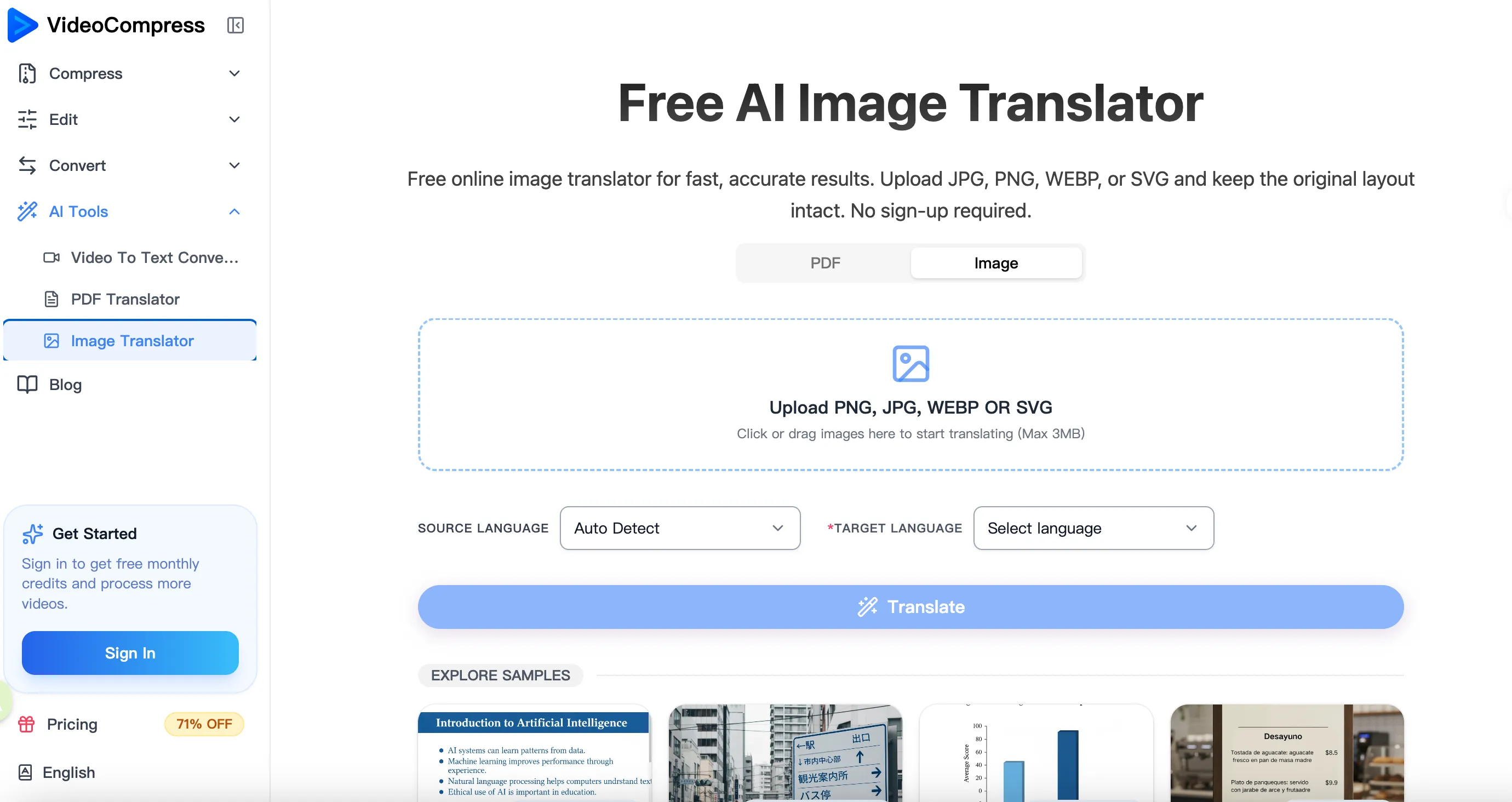
VideoCompress Image Translator is a free online tool for translating text inside images. It is suitable for users who want to upload a picture, select a target language, and receive a translated result without installing additional software.
Key features include:
- OCR-based text recognition
- Support for more than 90 languages
- JPG, JPEG, PNG, WEBP, and SVG support
- Maximum file size of 3MB per image
- Original and translated image comparison
- Translated-only and transcript views
- Downloadable translated images
- Copyable extracted text
- Summary, Mind Map, and AI Chat features
You can translate images online with VideoCompress and review the result in several formats.
Pros
- Free and easy to use
- No installation required
- Supports common image formats
- Offers comparison and transcript views
- Includes additional AI tools
Limitations
- The 3MB file limit may not suit very large images
- Blurry or highly stylized text may need manual review
- Important translations should still be checked
Best for
Ideal for students, travelers, and remote teams looking for a free, zero-installation online workflow.
Google Translate
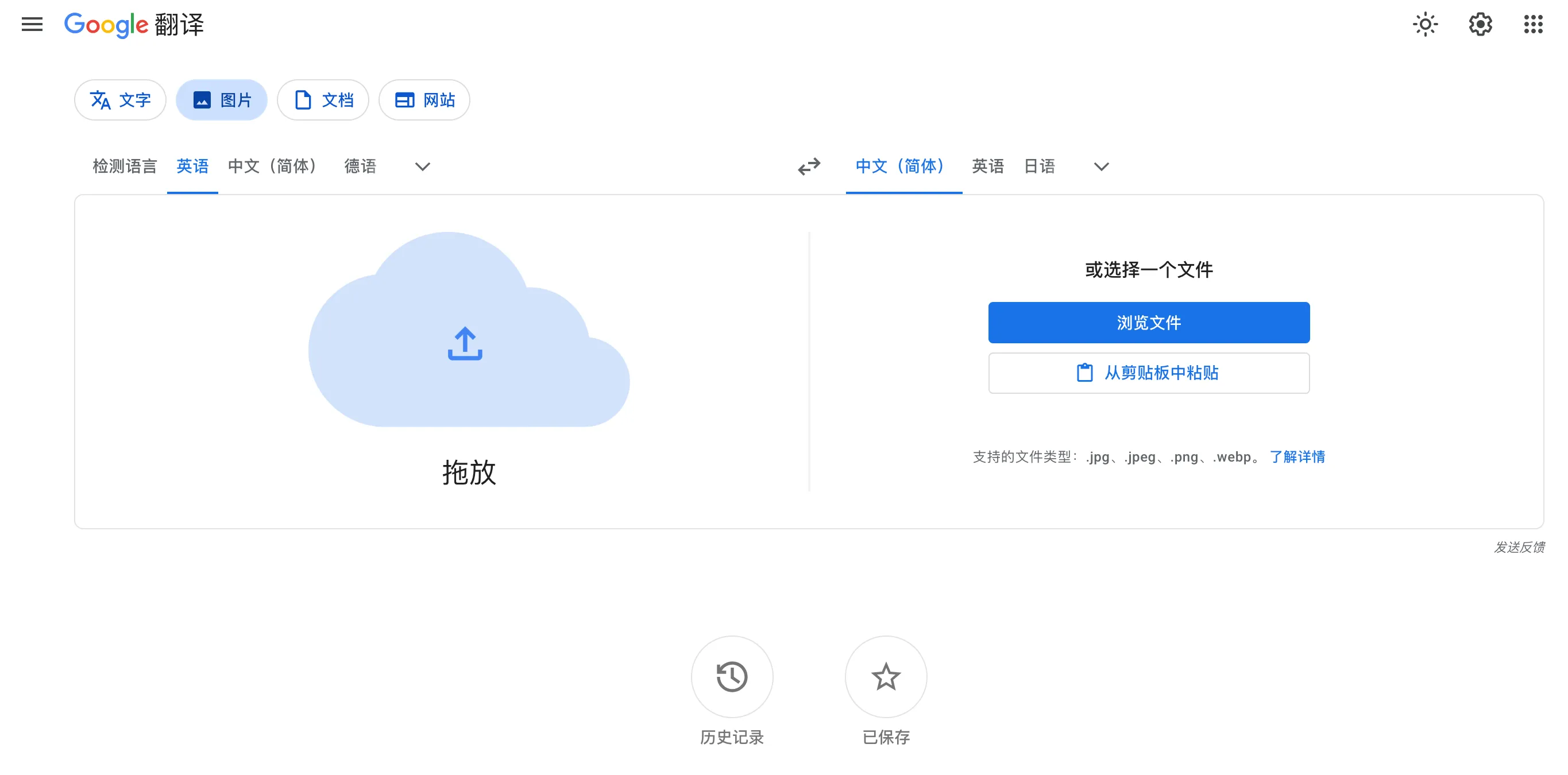
Google Translate is one of the most familiar translation services. Its mobile app supports camera-based translation, making it useful for signs, menus, and labels while traveling.
Pros
- Easy to access
- Useful for camera translation
- Convenient for everyday situations
- Supports many common language pairs
Limitations
- Image layout preservation may be limited
- Small or decorative text can be difficult to recognize
- A separate workflow may be needed to create a polished translated image
Best for
Quick travel translation and general understanding.
Immersive Translate
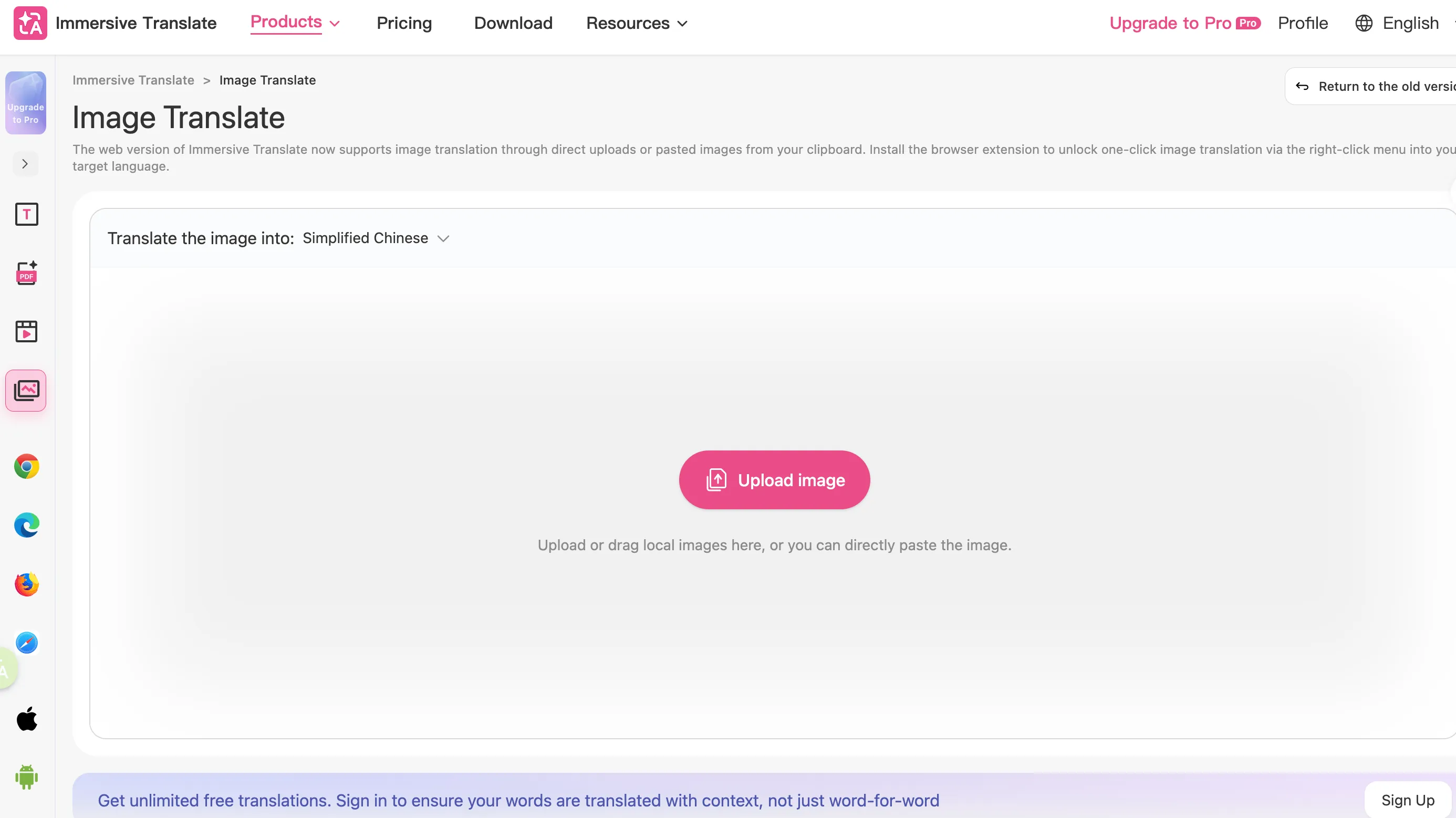
Immersive Translate focuses on multilingual browsing and webpage translation. Its browser workflow can help users translate visual content encountered online.
Pros
- Useful for foreign-language websites
- Browser extension workflow
- Suitable for webpage translation tasks
- Reduces the need to switch between tools
Limitations
- Less focused on standalone image downloads
- Browser-based features may not suit every user
- Results depend on webpage structure and image quality
Best for
Users who frequently translate images while browsing online.
Yandex Translate
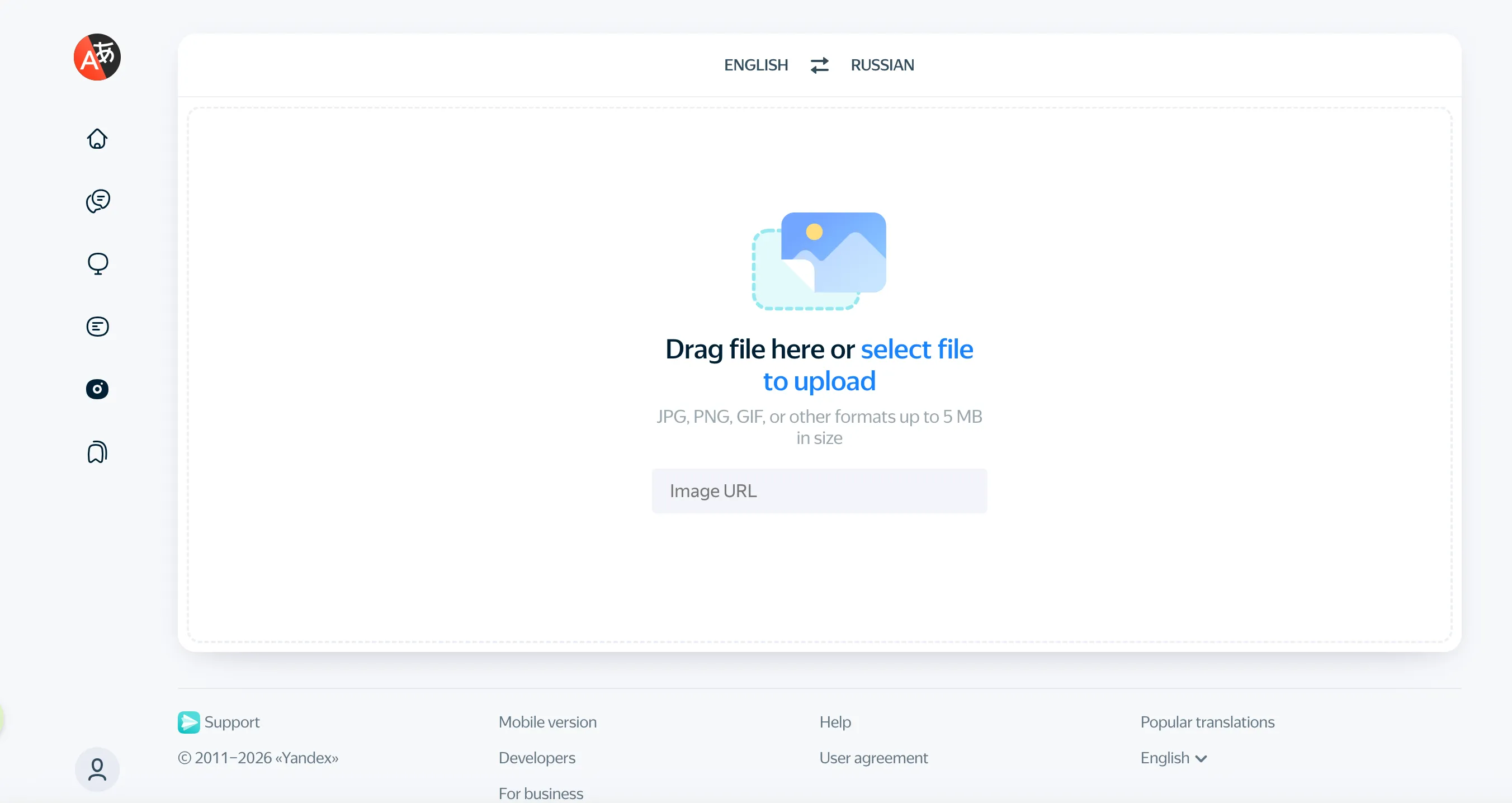
Yandex Translate provides online translation features for uploaded images and photos. It can be useful for users who want a straightforward way to recognize and translate visual text.
Pros
- Supports image uploads
- Useful for multilingual translation
- Simple online workflow
- Suitable for everyday visual content
Limitations
- Output and formatting options may vary
- Complex layouts may require additional checking
- Results may differ across language pairs
Best for
Quick multilingual image translation.
Visual Paradigm Online
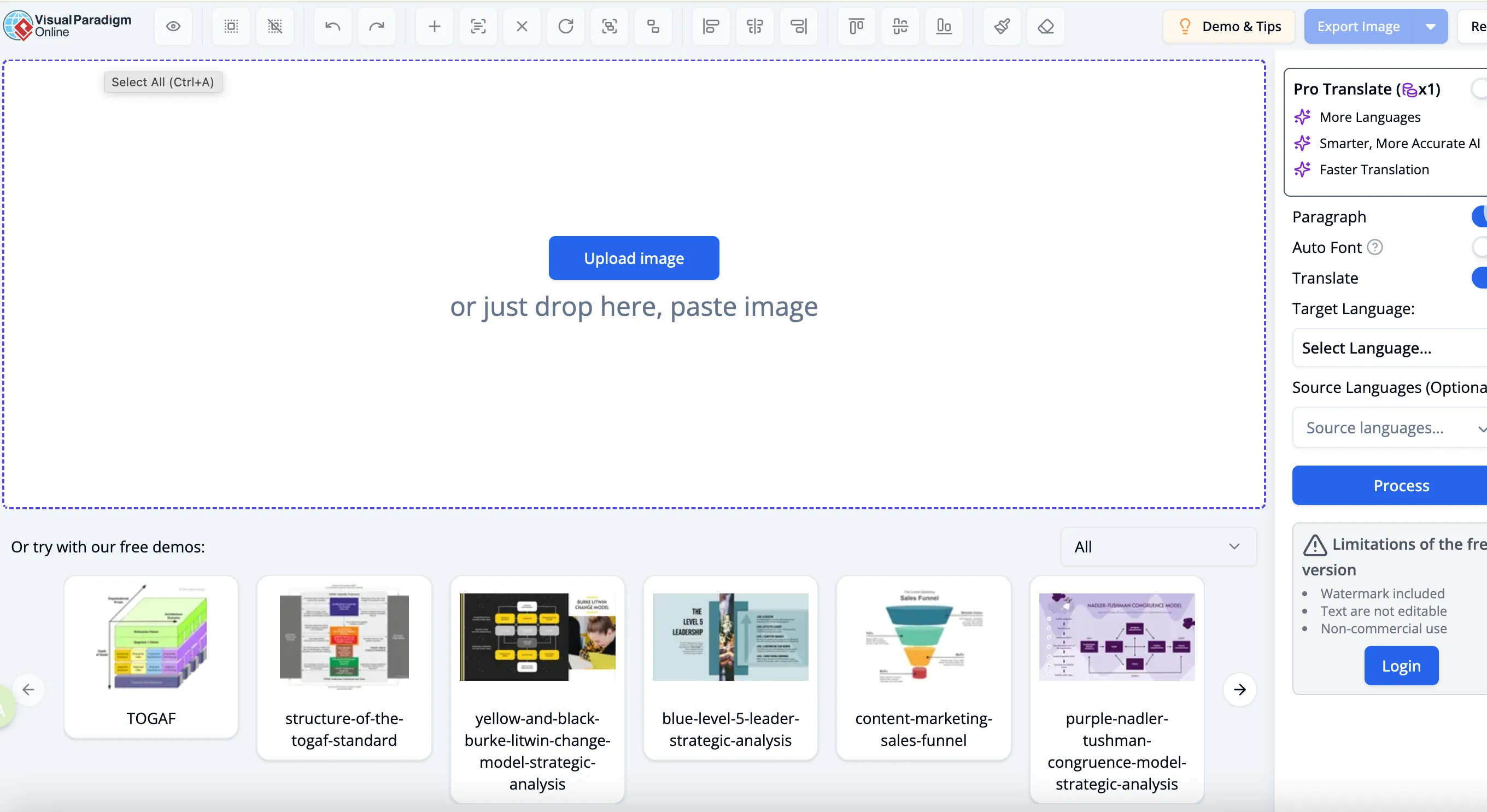
Visual Paradigm Online combines image translation with editing capabilities. This is useful when translated text needs to be adjusted inside the visual design.
Pros
- Allows users to edit translated text
- Useful for banners, diagrams, and promotional graphics
- Provides control over fonts, size, and positioning
Limitations
- More complex than a basic translator
- May be unnecessary for quick reading
- Editing workflows can take more time
Best for
Designers and marketers who need to refine translated visuals.
How to Choose the Right Image Translator
OCR Accuracy
If OCR reads the original incorrectly, the translation will also be wrong. Test the tool with screenshots, small text, mixed fonts, and moderate background noise.
Translation Quality
A good translation should preserve meaning rather than replace every word mechanically. Context matters for idioms, product descriptions, instructions, and conversational language.
Supported Formats and File Size
Check whether the tool supports the file types you commonly use. JPG, PNG, WEBP, and SVG support can be useful for different workflows.
Layout Preservation
If you only need to understand the text, a transcript may be enough. If you need to share or publish the result, choose a tool that preserves the original visual structure.
Speed and Privacy
Fast processing matters for everyday tasks. Privacy is also important when uploading contracts, supplier documents, or internal screenshots. Review the provider’s data policy before uploading sensitive content.
Tips for More Accurate Image Translation

Upload a Clear Image
A sharp image gives OCR more information to work with. Avoid sending a heavily compressed screenshot when the original file is available.
Keep Text Upright
Straight, horizontal text is generally easier to recognize than text that is heavily rotated or distorted.
Reduce Glare and Shadows
Reflections on menus, curved packaging, and dark shadows can hide letters. If possible, retake the photo in better lighting.
Check Names and Numbers
Names, prices, dates, measurements, model numbers, and technical terms are easy to misread. Review these elements carefully.
Compare With the Original
Even when the result looks fluent, compare it with the source image. This is especially important for legal, medical, financial, and safety-related content.
Frequently Asked Questions
How to Translate an Image Online for Free?
Upload the image to a free online image translator, select the target language, and review the result. VideoCompress Image Translator allows users to upload supported image files and translate them online.
How to Translate Images Without Retyping the Text?
Use an OCR-powered image translator. The tool extracts the text automatically, translates it, and may let you copy the result or download a translated image.
How to Translate Text on an Image Accurately?
Use a clear, high-resolution image with visible text. Choose a tool with reliable OCR, review the translation, and compare important details with the original.
What Image Formats Does VideoCompress Support?
VideoCompress supports JPG, JPEG, PNG, WEBP, and SVG images. The maximum file size is 3MB per image.
How Many Languages Does VideoCompress Image Translator Support?
VideoCompress supports more than 90 languages. The source language may be detected automatically while you select the target language.
Can I Download the Translated Image?
Yes. After processing, you can download the translated image as a JPG or copy the extracted text.
Conclusion
Learning how to translate an image does not require manual retyping or complicated software. With OCR and AI translation, you can convert menus, screenshots, signs, labels, documents, and marketing images into another language in a few steps.
The best image translator depends on your goal. Google Translate is convenient for travel, Immersive Translate works well for multilingual browsing, Yandex Translate supports everyday image translation, and Visual Paradigm Online offers more editing control.
For a free browser-based workflow with comparison views, transcript access, downloadable results, and additional AI features, try the online image translator from VideoCompress. You can also translate text from an image without installing software or manually copying every line.